

From collective agreement to completed SUGB, with a source for every answer
AI assistant for a staffing organisation that pre-fills the SUGB equal pay form from the CAO and company policies, with a source for every answer.

Deliverables
- Clickable prototype
- UX/UI design
- Web application development
- AI implementation
- Document processing with OCR
- PDF export and archive
- DocuSign integration
Tech stack
- React and TypeScript
- Python and FastAPI
- Azure OpenAI
- Azure AI Document Intelligence
- Unstructured and Tesseract
- FAISS
- Azure Blob Storage
- DocuSign
Since 1 January 2026, agency workers in the Netherlands have been entitled under their new collective labour agreement (CAO) to equivalent pay: equal in value to what a comparable employee receives at the company where they work. That means the staffing agency needs to know what that company offers. This is what the SUGB is for: the Standaard uitvraag Gelijkwaardige Beloning, a standard equivalent pay questionnaire from the ABU and the NBBU, the two Dutch staffing industry associations. Our client works in the staffing sector and completes that questionnaire for the companies where agency workers are placed. Your Tech Club built an internal application for the employees who do that work: an assistant that pre-fills the form from the CAO and the company's own policies, showing for every answer where it comes from.
What needed to improve?
The SUGB is a long questionnaire. It asks about pay and pay scales, allowances, travel expenses, special payments, leave, pension, the individual choice budget and a series of additional arrangements. The answers are in the CAO and in the company's own policies, such as a staff handbook. Whoever fills in the form looks them up one by one. For every company, all over again.
That search work has to be precise. A missed allowance or a wrong percentage carries through into what an agency worker is paid. And the CAO is not always the whole story: a company can have its own policies that differ from it.
No source, no answer
A language model will fill in a form like this without hesitation. The question is whether it is right. An answer that sounds plausible but isn't written anywhere is worse here than an empty field. In the first trial versions we saw exactly that happen: the model sometimes gave values that were not in the documents.
So we turned it around. The assistant only answers a question if it finds the answer in the documents provided. It then shows the exact passage, with the file name and page. If it finds nothing, the field stays empty, with a note that the documents contain no information about it.
Our approach
We started with a clickable prototype of the wizard, filled with sample data. That fixed the route through the form before any AI was involved. After the trial versions of the AI analysis came the final setup: separate document processing in Python and a web application for the employee.
Search instructions for each question
A lot of the work went into the questions themselves. For every question in the questionnaire, it is set down which section it belongs to and which search terms the assistant uses. The type of answer and the answer options are fixed too, as is which options need a value, such as an amount or a percentage.
Each question also got a short work instruction: where to look first, what to write down and what to do if nothing turns up. Take the question about standard weekly working hours. The instruction says: search the CAO for normal working hours. If it says 40, 38 or 36 hours, choose that option. If it gives a different number, choose 'Other, namely' and copy the number exactly. If there is nothing, give no answer.
The instructions also allow for words that differ between documents. Holiday allowance is called vakantiebijslag in one CAO and vakantiegeld in another. The assistant reads the CAO as the baseline and then looks at company policies that add to it or differ from it.
One company per session
When uploading, the employee states which company the form is for. Each session gets its own search index, so documents from different companies stay separate. Passages that mention the company's name get priority. The assistant only uses company-specific provisions if they apply to that company.
How a session works
Completing a form takes five steps:
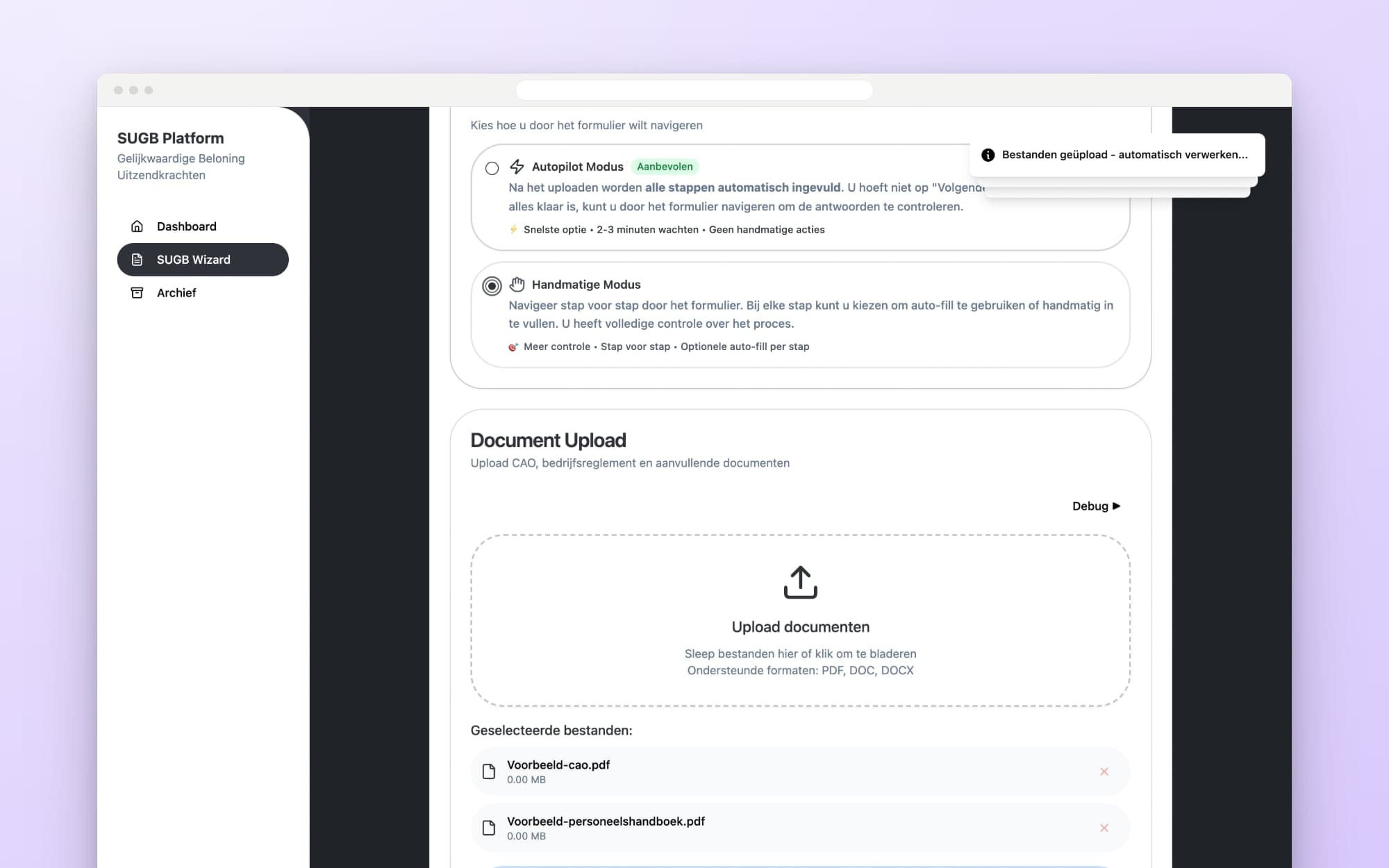
- The employee enters the company name, chooses how they want to work and uploads the CAO and company documents.
- The application reads the documents and makes them searchable. The screen shows how far along it is. While that runs, navigation is paused.
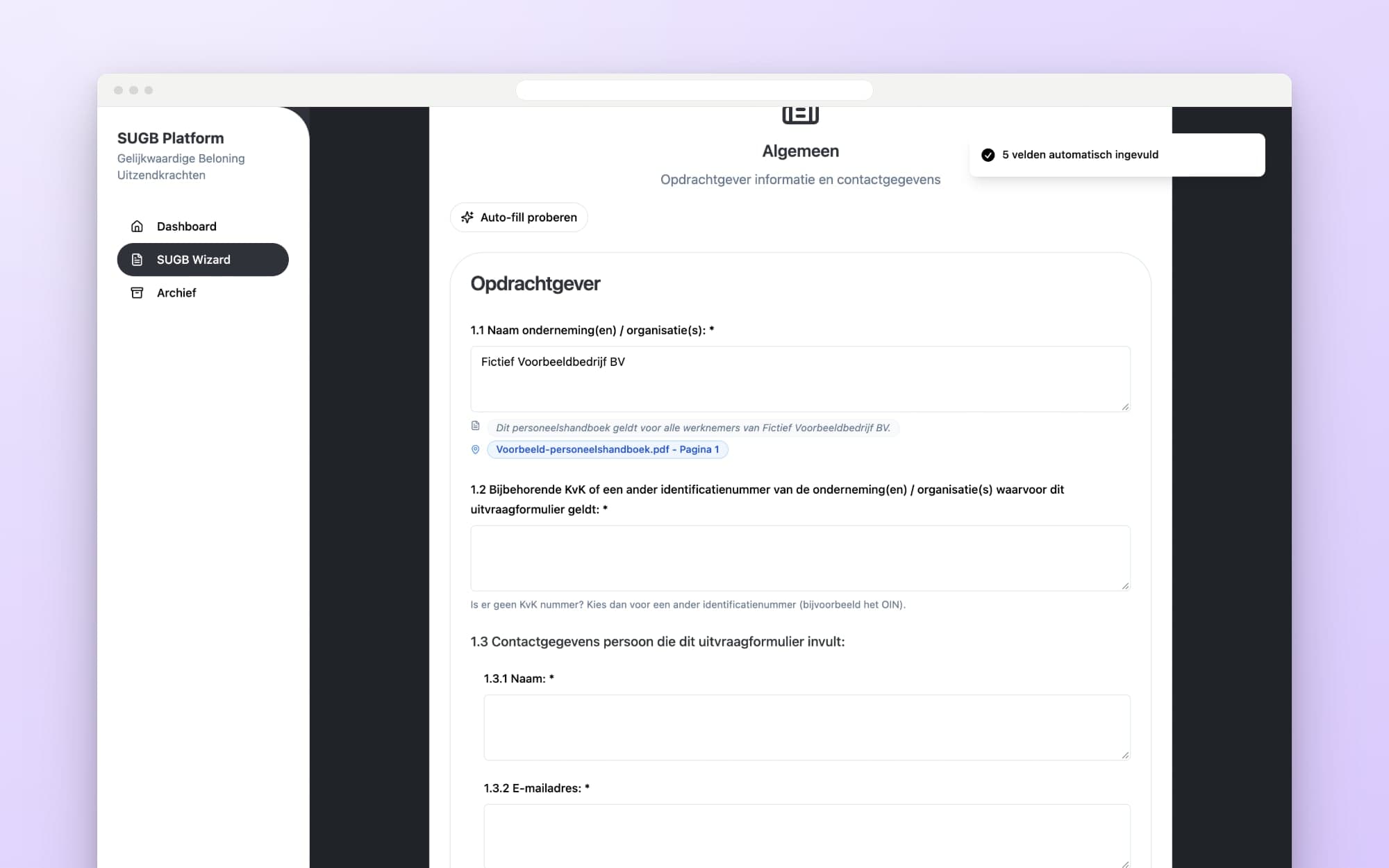
- The assistant pre-fills the steps of the form, with a source for every answer.
- The employee goes through the steps, corrects what is wrong and fills in what was left empty.
- In the review step, the application creates a PDF and saves it in the archive.
Reading documents
The application works with PDFs. That has two advantages. Every source points to a fixed page, and digital and scanned documents go through the same processing. A file that is not a valid PDF is left out of processing.
Text and tables, such as pay tables, are extracted from every PDF. Scanned pages go through OCR in Dutch and English.
When a document can't be read
Each document is processed separately. If the first reading method produces nothing usable, the application tries a second. If that fails too, the error is logged for that document and the other documents carry on. If no text comes out of any document, the session stops with a clear message. For every session, you can see which step was taken when and how each document was read. If processing seems to stall, the screen says so and the employee can restart it.
What the assistant fills in
Open questions and multiple-choice questions
For each question, the assistant finds the passages that say the most about it. A language model picks the answer from those. For an open question, that is a short answer. For a single-answer question, it chooses exactly one option supported by the text. For questions with multiple answers, the assistant checks each option against the passages found and only ticks what appears there.
A value, not a yes
Many options need a value: 'Other, namely', a percentage of periodic pay, an amount per kilometre. The assistant then copies that value exactly from the text. If the model still returns 'yes' or 'no' as the value, the assistant rejects it. It then searches the passage for an amount, a percentage or a number of days or hours. If it can't find one, the value stays empty.
The passage behind the answer
Next to every completed field is the passage the answer is based on, up to 300 characters long. The assistant picks the passage where the answer actually appears, not just the top search result. Below it are the file name and page, with up to three where there are several matches. That way the employee knows straight away where to look.
Autopilot or step by step
In autopilot mode, the assistant fills in all the steps one by one after the upload. If a step fails, it tries again or skips that step with a message, and moves on to the next. The employee can also stop the process. In manual mode, the employee goes through the form step by step and chooses for each step whether the assistant helps.
The review step
The final step lists the whole form. Each section shows 'Complete' or 'Needs attention', with the key values and any errors and warnings. The Edit button takes the employee back to that section. The form can only be submitted once every section is in order. This is also where the employee creates the PDF, which is saved with the answers.
Archive and further editing
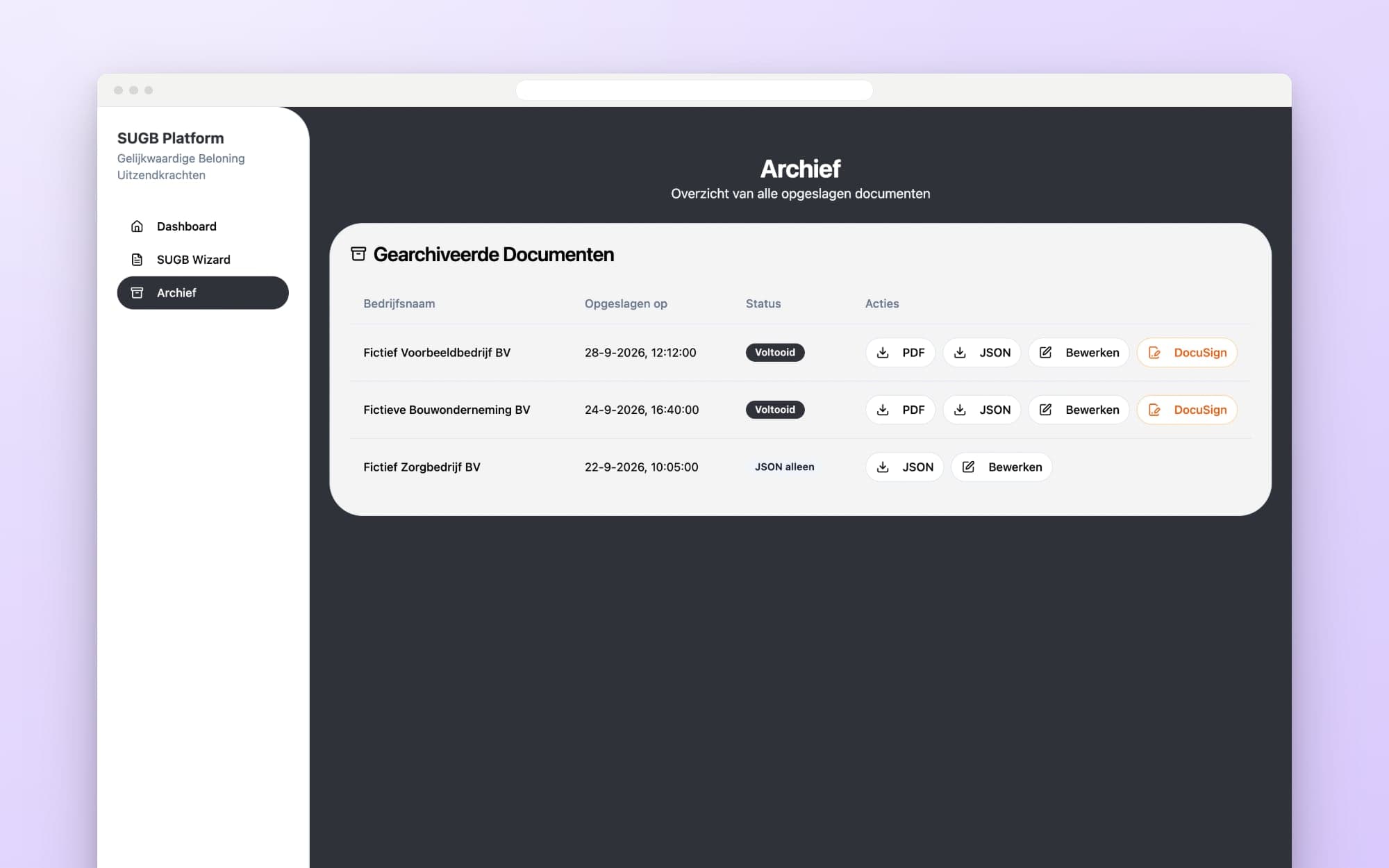
The archive shows the company name, date and status for each form. From there you download the PDF or the answers as a data file. Edit opens the form with the saved answers. In that mode the assistant fills in nothing again, so the employee's changes stay as they are. A form can also be sent for signature via DocuSign. The PDF has fixed fields for name, company, signature and date.
Who does what
The assistant reads, searches and makes a proposal with a source. The employee chooses the company and the documents, checks every step, fills in what is missing and decides what goes into the form.
What changes?
The employee no longer starts from an empty form and a pile of PDFs, but from a proposal they can check. Every answer points to the place in the CAO or policy where it comes from. Where the documents say nothing, there is an empty field, not a guess. Judgement stays with the people who are responsible for it.

Get in touch with us directly. We'll get back to you as soon as we can


 Your message goes straight to our team in Amsterdam.
What did Your Tech Club build for this client?
An internal web application with an AI assistant that pre-fills the SUGB from the CAO and company policies. We made the prototype, the design and the web application, built the document processing, wrote search instructions for each question and delivered the PDF export, the archive and the DocuSign integration.
What is the SUGB?
The Standaard uitvraag Gelijkwaardige Beloning is a questionnaire from the ABU and the NBBU, the Dutch staffing industry associations. It is used to request, from the company where an agency worker is placed, the employment conditions the staffing agency needs to provide equivalent pay, from wages and allowances to pension and travel expenses. The company completes the questionnaire and shares it with the staffing agency.
How do you stop the AI from making up answers?
By only allowing answers that appear in the documents provided. Every answer comes with an exact passage, with the file and page. Without a source, the field stays empty. The employee then checks the answers in the review step before the PDF is created.
Which documents can the assistant read?
PDFs of the CAO and of company policies, such as a staff handbook. Scanned documents too: they go through OCR in Dutch and English. Tables are read as well. Other file types are left out of processing.
What happens if a document can't be read?
The application then tries a second reading method. If that also fails, the error is logged for that document and the other documents carry on. If no text comes out of any document, the session stops with a message.
Does the assistant work per company?
Yes. When uploading, the employee states which company the form is for, and the assistant answers the questions for that business. Each session gets its own search index, so documents from different companies never get mixed up.
Can a completed form be changed later?
Yes. From the archive, you open the form with the saved answers. The assistant then fills in nothing again, so the employee's changes stay as they are. You then create a new PDF.
What technology does the assistant run on?
The web application is built in React and TypeScript. Document processing runs on Python with FastAPI. Unstructured and Tesseract extract text and tables from the PDFs, with Azure AI Document Intelligence as a fallback. FAISS searches the documents, a language model in Azure OpenAI chooses the answer, and the files are stored in Azure Blob Storage.