


In this article
Every morning someone opens the shared mailbox and starts sorting. This is a support question, this an invoice, this a new enquiry, this can go. Then forwarding, copying details across and typing a reply that looks a lot like yesterday's. Much of that work can be automated in Outlook.
A workflow can recognise messages, pull details from text and attachments, look up information, draft a reply and send the email to the right team. Start with suggestions a person approves. Only let the workflow send on its own once quality, permissions, logging and exceptions are demonstrably under control. That's different from Copilot in Outlook, which summarises or answers an email for whoever has it open. The difference is explained in Microsoft 365 Copilot for business.
Which Outlook tasks can you automate?
- Sorting: new enquiry, existing customer question, support, invoice, planning, complaint, job application, internal message or low priority.
- Routing: to a folder, a team, a colleague, a ticketing system or a queue.
- Capturing details: customer number, order number, location, date, amount, product, requested action and urgency.
- Summarising: for a quick assessment, a handover, a ticket description or a CRM note.
- Draft replies: based on the email, your knowledge base, customer data and standard terms, with the source shown.
- Processing attachments: PDF, Word, Excel, images and forms.
- Recording actions: after approval, creating a ticket, CRM task, calendar item or follow-up.
A worked-out version of such a sorter is the AI employee Inbox Triage. If orders arrive in your mailbox, read automating order processing.
Three technical routes
Power Automate
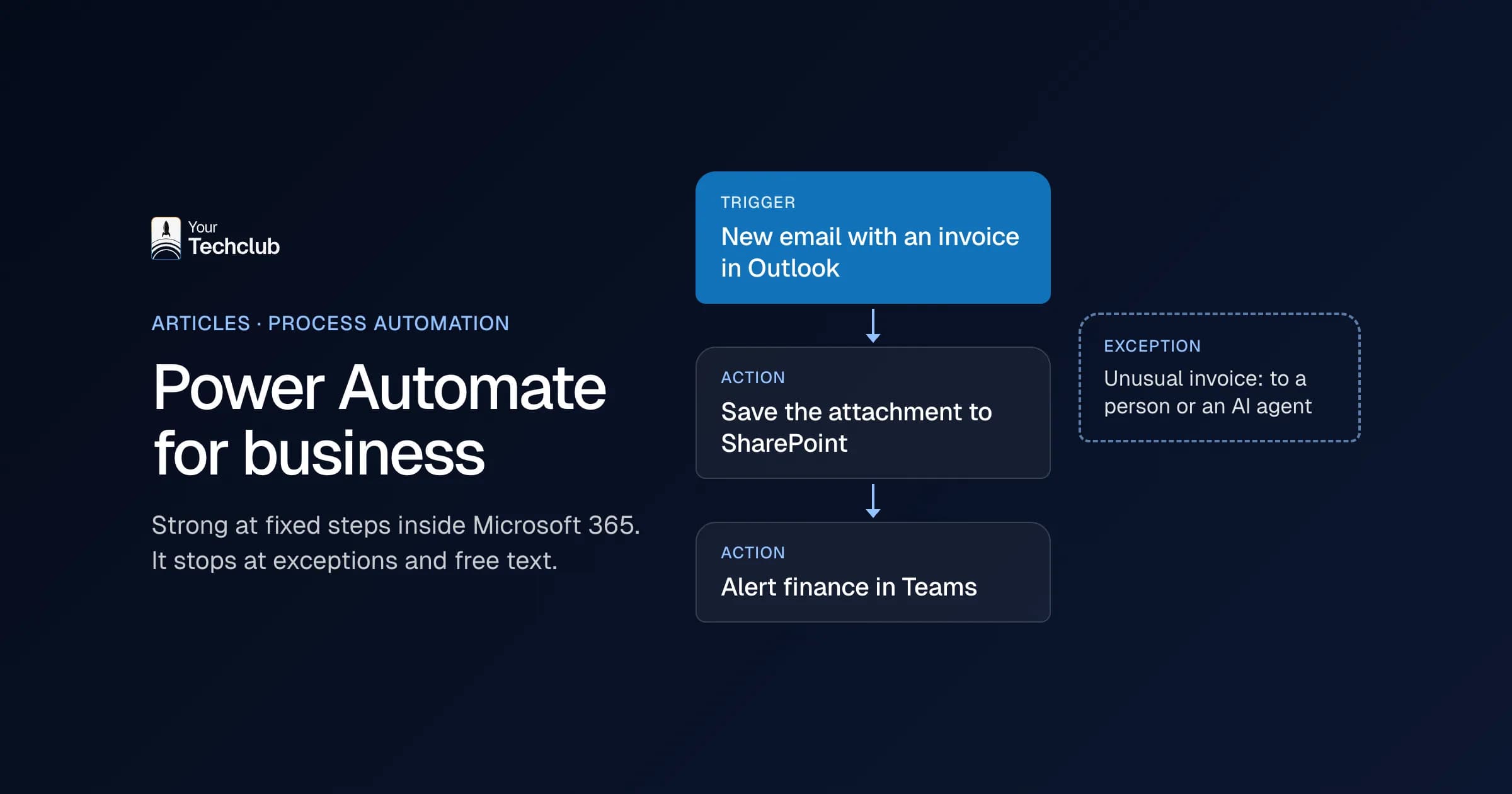
A good fit if you already use Microsoft 365, the standard connectors are enough, the workflow is straightforward and functional administrators want to maintain it themselves. Keep an eye on the limits of your licence and the connectors. Microsoft documents this for Power Automate and the Office 365 Outlook connector. Where Power Automate stops and an AI agent begins is covered in Power Automate or an AI agent.
Microsoft Graph
A good fit if you need your own logic, combine mailbox data with other systems or want to handle permissions and logging in the architecture yourself. With the right permissions, the Outlook Mail API gives access to personal and shared mailboxes. With change notifications, an application responds to new mail without constantly checking for it.
Integration platform or your own workflow
Tools such as n8n fit when you combine Microsoft 365 with systems outside it, want to decide where it runs or need a lot of branching. The choice depends on security, management, licences and the skills you have in-house. What's possible through the Microsoft 365 integration is on Microsoft 365.
Shared or personal mailbox?
Start with a shared mailbox. The process belongs to a team, ownership is clear, access can be managed centrally and nobody has to open up their entire personal inbox. Do decide who has access, which folders are included, how replies are sent on behalf of the mailbox and how you keep private and HR messages out of the workflow.
Step by step
1. Choose one mailbox process
For example: sort all new service messages in service@ and prepare a draft ticket. Not: automate all email in the company.
2. Define the categories
Keep them simple, let them overlap as little as possible and link each category to a follow-up action. Add an "unclear" category. Don't force the model to always choose.
3. Build a test set
Collect past messages and anonymise where needed. Include short and long emails, other languages, forwarded threads, attachments, several questions in one message and emails containing instructions that don't belong there.
4. Decide which details you need
For each field, record whether it's required, where it comes from and how you check it. A category comes from a fixed list. A customer number must exist in the CRM. High urgency always goes past a colleague. A draft reply never leaves without approval.
5. Design the permissions
Decide whether the workflow only reads or also writes, whether it sees one folder or the whole mailbox, whether it may open attachments and who manages the app registration and keys. Microsoft Graph has delegated and application permissions. Choose the narrowest route that supports the process and check the current documentation when you build.
6. Build in checks
An amount must be a number. Sensitive categories always go to a person. When in doubt, nothing happens automatically. Links and attachments are handled safely.
7. Let a person approve
Show the colleague, on one screen, the original email, the suggested category, the captured fields, the source, the draft and any warnings. Record every correction. That's where you learn most.
8. Run in shadow mode first
In shadow mode the workflow makes predictions but changes nothing. You compare its choices with what your team actually did. Only when that's good enough do you start a limited pilot.
9. Measure
Measure how often the category and routing are right, time to first handling, handling time, how often details are complete, how many drafts go out with no or minor correction and how often something happened automatically that shouldn't have.
Example: quote requests in sales@
A request comes in. The workflow recognises the company, contact and service, checks what's missing, looks up the customer in the CRM, writes a summary and a draft email with follow-up questions, assigns the request and records the result. A colleague approves. The workflow doesn't quote a price and doesn't send anything itself in the first phase. How to set up the rest of the quoting process is in creating quotes with AI.
Which route suits you?
- Does the process belong to a team? Start with a shared mailbox.
- Is the logic mostly fixed? Start with Power Automate and rules. If not, add AI for sorting, capturing details or drafts.
- Are other systems updated? Then look at APIs, permissions, logging and error handling.
- Does a mistake have consequences outside your business? Build in human approval.
- Are volume and management complex? Consider Microsoft Graph or your own workflow.
Email is outside input
Anyone can send you an email. An instruction in a message or attachment must therefore never count as a command to the system. This is called prompt injection. Keep system rules separate from email content, limit the actions the workflow can take, check the output, require approval for sensitive actions and log which source led to an action. More in AI security for SMEs.
Privacy
Email contains personal data, contract details and confidential information. Define the purpose and legal basis, process no more than needed, arrange access rights and retention periods, and read your supplier's terms on training on your data and transfers outside the EEA. The Dutch Data Protection Authority's practical documents are a good starting point. Have the specific application assessed. See also the AI Act and the GDPR: what you need to arrange.
What drives the cost?
The number of mailboxes, shared or personal, the number of categories, attachments, the number of systems you update, whether it must be real-time, volume, logging, management and licences. An indication per type of project is on AI solution costs.
Want to know whether your mailbox is the right place to start, or whether another process would deliver more? We find out in the AI Opportunity Audit.
Frequently asked questions
Can AI reply automatically in Outlook?
Technically yes, but start with draft replies that a colleague approves. Sending automatically only makes sense once quality, scope, sources, escalations and recovery are demonstrably under control.
Does this work with a shared mailbox?
Yes, and it's usually the best place to start. The permissions and the route you choose must support shared mailboxes. Check Microsoft's current documentation and test this separately.
Is Power Automate enough?
For many straightforward workflows within Microsoft 365, yes. With complex logic, high volumes, a custom interface or several external systems, Microsoft Graph or your own workflow is often a better fit.
Can AI read attachments?
That depends on the file type and the document processing you choose. Treat attachments as untrusted input and check privacy, malware and the quality of what's extracted.
How do you prevent email being routed wrongly?
With clear categories, an "unclear" category, a threshold for how certain the model must be, a test set of real examples and human checks in the first phase.